If you’ve been running a website on shared hosting and suddenly everything feels slow, random, or “why did my site go down when I didn’t do anything?”, welcome. You’re not crazy. You’re just outgrowing shared hosting.
That’s usually when people start hearing a new word: VPS.
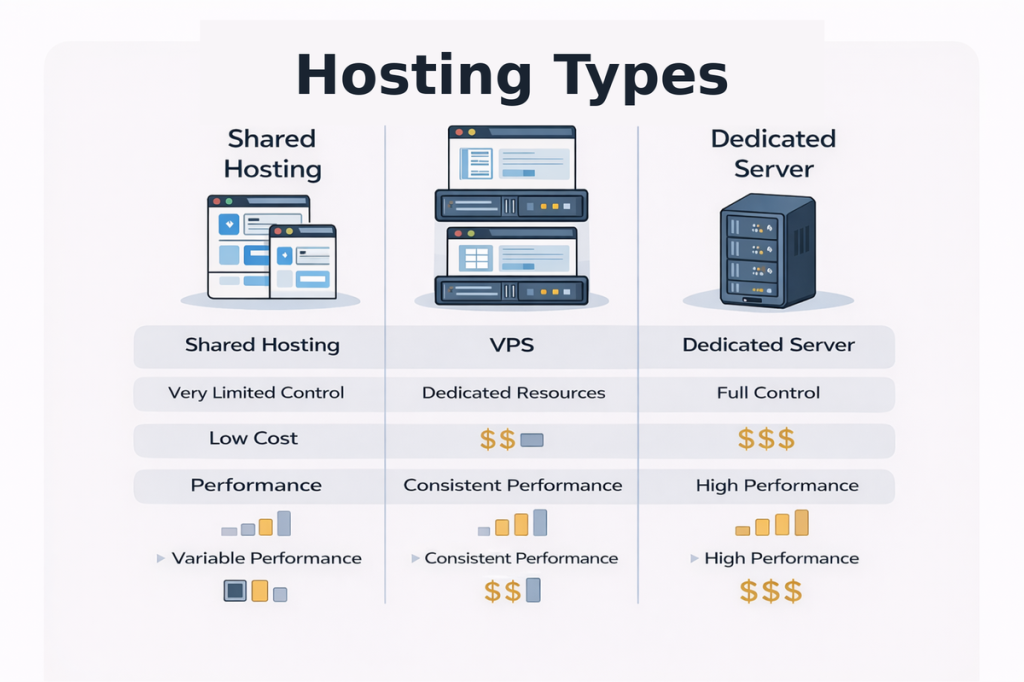
A VPS (Virtual Private Server) is a virtual machine on a physical server with dedicated resources (CPU/RAM/storage) allocated to you.
It gives you more control and stability than shared hosting, without the cost of a dedicated server.
A VPS sounds technical, expensive, and like something only developers use. In reality, it’s often the most practical next step for a small business site, a growing WordPress blog, or any project that needs more stability and control without jumping straight into “full dedicated server” territory.
So what is a VPS (in plain English)?
A VPS (Virtual Private Server) is a server that feels like your own machine, but it’s actually a “virtual slice” inside a larger physical server in a data center.
The easiest analogy:
- Shared hosting is like sharing a table at a crowded food court.
- A VPS is like having your own table in a quieter café.
- A dedicated server is like renting the whole café.
You still share the building (hardware), but your space is separated and reserved. That’s why VPS is usually more stable than shared hosting.
Why shared hosting starts to feel “weird”
Shared hosting is designed to be cheap and easy. Many websites share the same server resources. It works great for small sites.
But once your site grows, you can run into problems like:
- Random slowdowns during peak hours
- Traffic spikes that cause errors
- Plugins or background tasks that overload the server
- Limits that you can’t change (because you don’t control the environment)
Sometimes it’s not even your site causing the problem. It can be a “noisy neighbour” website on the same shared server using too much CPU or memory.
That’s one of the biggest reasons people upgrade to VPS: they want fewer surprises.
How a VPS actually works (beginner-level technical, not scary)
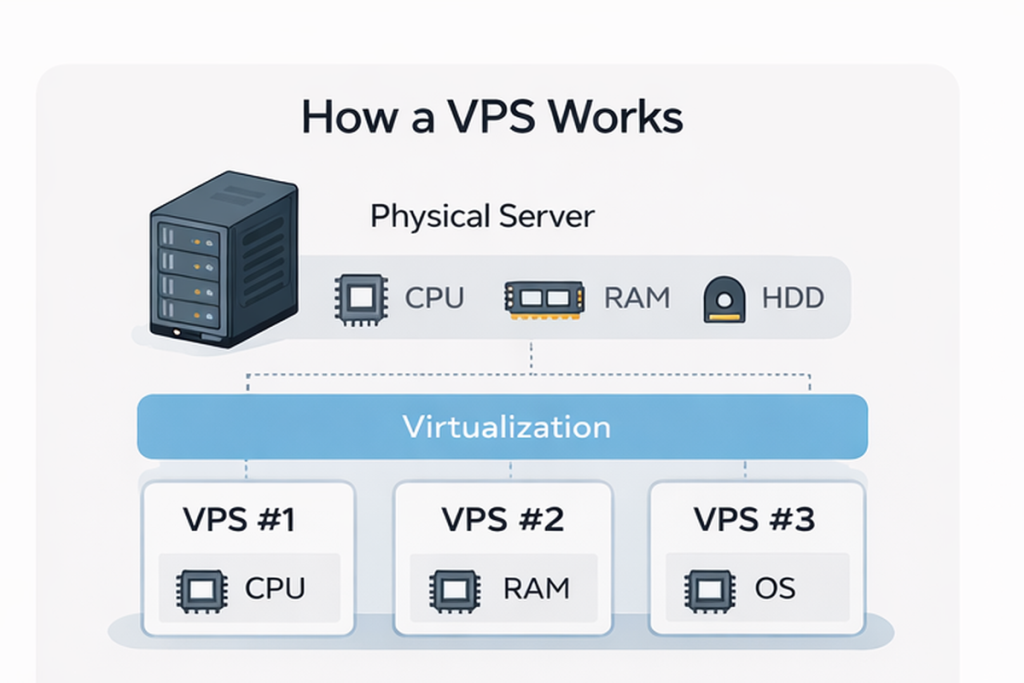
Inside a data center, there are physical servers (real machines with CPU, memory, storage). A virtualization layer splits one physical server into multiple VPS instances. Each VPS gets allocated resources and runs its own OS environment.
So your VPS behaves like a real server:
- You can install software
- You can configure your web server
- You can reboot it
- You can control security settings
That’s why VPS feels “real” compared to shared hosting.
What can you do with a VPS?
A VPS can host almost anything a normal server can, especially common beginner needs like:
- WordPress sites (especially when shared hosting becomes unstable)
- Small business websites
- E-commerce stores (WooCommerce, Magento, etc.)
- Small SaaS / web apps
- API services
- Staging environments (test sites before pushing changes live)
In short: if you want more control, more stability, and the ability to grow, VPS is usually the first serious step.
The “parts” of a VPS (what you’re really paying for)
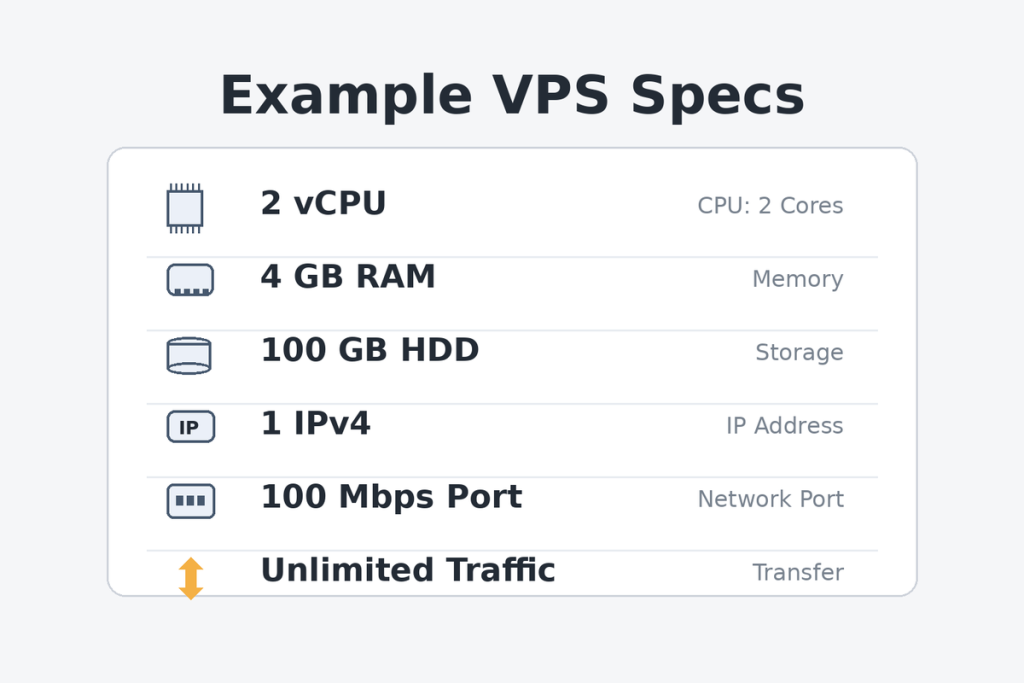
When you browse VPS plans, you’ll see a few specs. Here’s what they mean in human language.
CPU (vCPU cores)
This affects how many tasks can run at the same time. If your site does lots of PHP processing (WordPress with heavy plugins), CPU matters.
RAM (memory)
This is the “smoothness” buffer. Too little RAM can cause slow performance or crashing when traffic spikes.
Storage (HDD, SSD, NVMe)
This affects how fast files and databases are read/written.
- HDD: entry-level option. Fine for learning, testing, basic sites, and workloads that don’t hit the database too hard.
- SSD: faster and more responsive than HDD for most modern workloads.
- NVMe: even faster (great for heavy database usage and high traffic).
If you’re running a WordPress site that feels sluggish, storage speed can make a noticeable difference. If budget is tight, start with HDD, but know that SSD/NVMe usually feels snappier when the site grows.
Bandwidth + Port speed
If your site serves lots of images, downloads, or video, bandwidth matters. For many business sites, “enough bandwidth” is more important than chasing the highest CPU.
IP address
Most VPS comes with at least 1 IPv4. Some projects need more, but beginners usually start with 1.
Who should use a VPS?
VPS is a great fit if:
- Your WordPress site is growing and shared hosting is becoming unstable
- You want to host multiple sites in one environment
- You need custom settings or installs shared hosting won’t allow
- You want better performance without paying for a full dedicated server
- You want more control over security and configuration
Who should NOT use a VPS (honest answer)
A VPS might not be ideal if:
- You want zero technical handling forever
- You don’t want to manage updates, security patches, or basic maintenance
- Your site is tiny and shared hosting is already stable and fast enough
If you still want VPS but don’t want the technical part, look for a provider that offers managed services, or keep your setup simple (and don’t install 47 plugins just because you can).
A simple VPS sizing guide (so you don’t overthink it)
This is a reasonable starting point for many beginners:
- Basic blog / small website: 1 vCPU, 1–2GB RAM
- Growing WordPress / small business site: 2 vCPU, 4GB RAM
- WooCommerce / higher traffic sites: 4 vCPU, 8GB RAM or more
- Multiple sites / apps: 4 vCPU+, 8–16GB RAM
Start small, monitor usage, then upgrade. That’s normal.
Where to rent a VPS (if you don’t know where to start)
There are many VPS providers. The best one depends on where your users are and what kind of network routing you need.
If you’re new, choose based on:
- Data center location near your visitors
- Network quality and route choices
- Clear upgrade path
- Pricing that fits your testing and growth phase
A practical option: RAKsmart (based on my own usage experience)
Disclosure: This post may contain affiliate links. If you buy through them, I may earn a small commission at no extra cost to you.
I’ve worked with and tested different VPS setups over time, and RAKsmart is one provider I personally use when I need flexible VPS deployment across regions and different network routes.
If you’re looking for a VPS provider with:
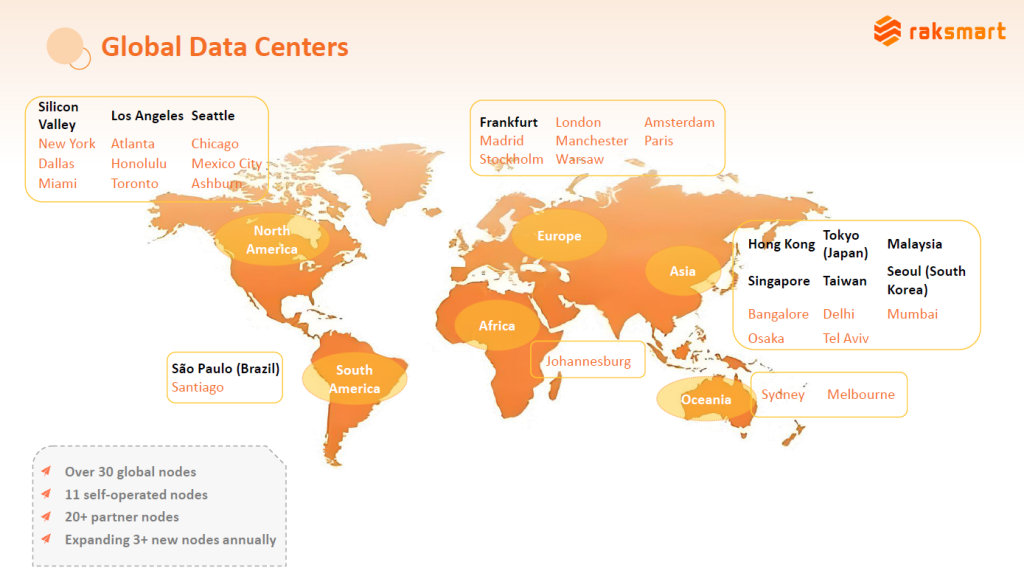
- Global coverage (so you can deploy closer to users in different regions)
- Multiple network route options, useful when your audience isn’t just in one country
- Routes beyond basic international connectivity, including China Optimized VIP and China Optimized CN2 for cases where you have mainland China visitors
- Affordable plans suitable for stable everyday hosting, testing, and learning
…then RAKsmart is worth considering as a starting point.
Quick rule of thumb: choose the VPS location closest to your main visitors first. If your traffic includes China, picking a China-optimized route can noticeably improve user experience.
Final thoughts
A VPS is often the best next step when shared hosting starts feeling unpredictable. You get more stability, more control, and more room to grow. And you don’t need to be a server expert on day one. Start simple, monitor what your site actually needs, then upgrade only when the data tells you to.
If there’s one rule to remember: pick the location closest to your visitors, and keep your setup clean and lightweight.